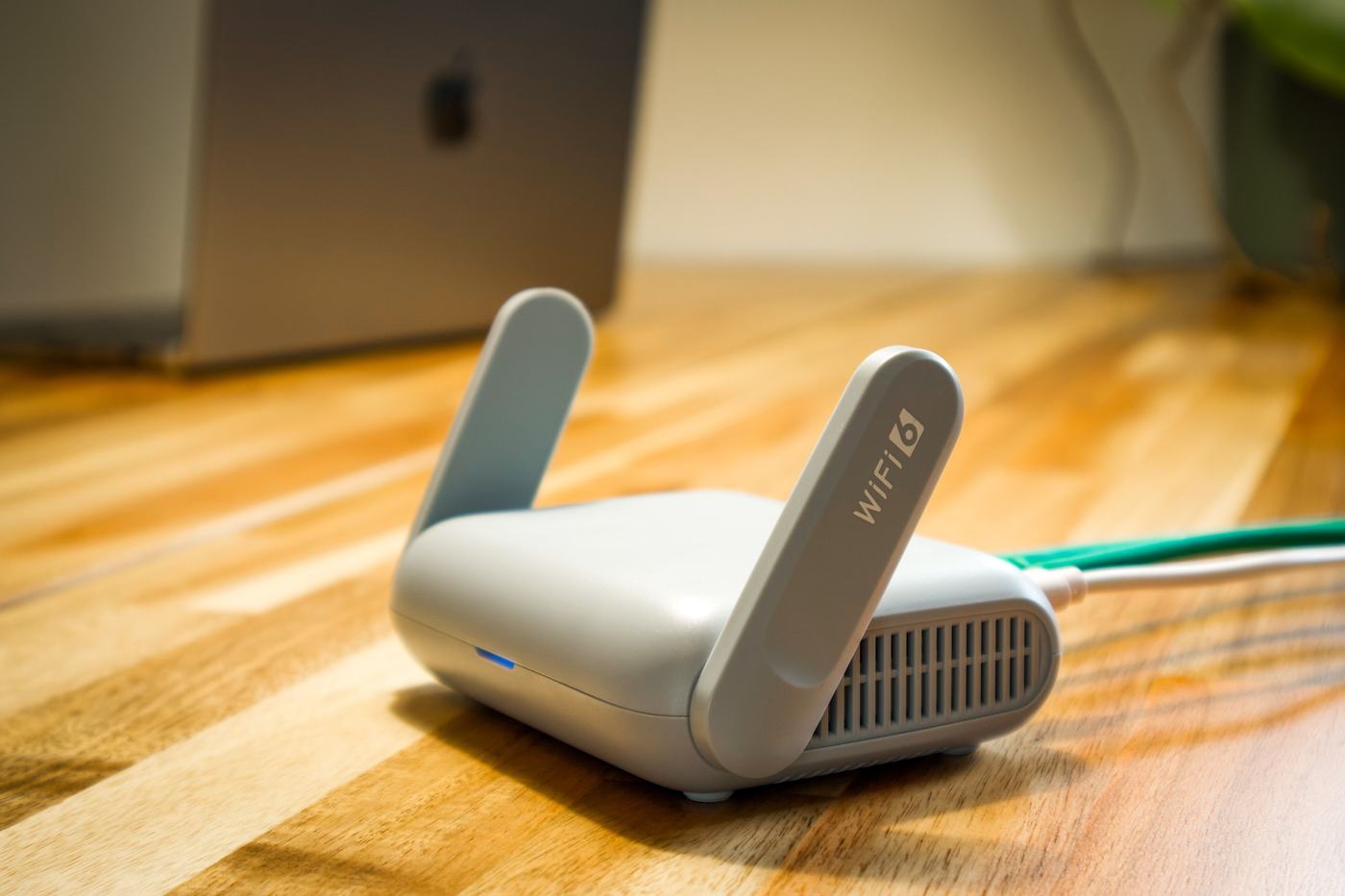
1. Restart the router
This is the first step, and the one that fixes the most problems at once. Turn off the router, wait about 30 seconds, and turn it back on. This clears temporary memory glitches and resets the connection with your provider from scratch. It might seem minor, but it solves a large share of sudden speed drops.
2. Check how many devices are connected
Every phone, tablet, smart TV, or console connected to your wifi uses up part of the available bandwidth. If there are a lot of devices connected at once at home, especially if one of them is streaming high-quality video or doing a heavy download, it's normal for everyone else to notice the connection getting slower.
- Check from your router's or provider's app how many devices are connected at that moment.
- Disconnect the ones you're not using, especially any that might be downloading something in the background.
3. Place the router in a central, elevated spot
The router's position matters much more than it seems. Place it in a central spot in your home and somewhat elevated (on a shelf, for example), and avoid:
- Tucking it inside a cabinet or behind furniture.
- Placing it against thick or concrete walls.
- Putting it near other electronic devices that could cause interference, such as microwaves or cordless phones.
4. Switch from the 2.4 GHz band to 5 GHz
If your router is dual-band, it probably broadcasts on both 2.4 GHz and 5 GHz. The 5 GHz band offers considerably more speed, although it has somewhat less range. If you're close to the router, connect to the 5 GHz network to notice a clear improvement in speed.
5. Update the router's firmware
Firmware is the router's internal software, and updates usually fix bugs that affect performance. You can check whether an update is available from the router's own configuration page (usually accessed by typing its IP address into your browser) or from your provider's app if they gave you one.
6. Check whether the problem is with your provider
If you've tried everything above and it's still slow, the problem might not be the wifi but the speed you're actually getting from your provider. To check this:
- Connect a computer directly to the router with a network cable (not over wifi).
- Run a speed test with any online speed meter.
- Compare the result with the speed you're paying for.