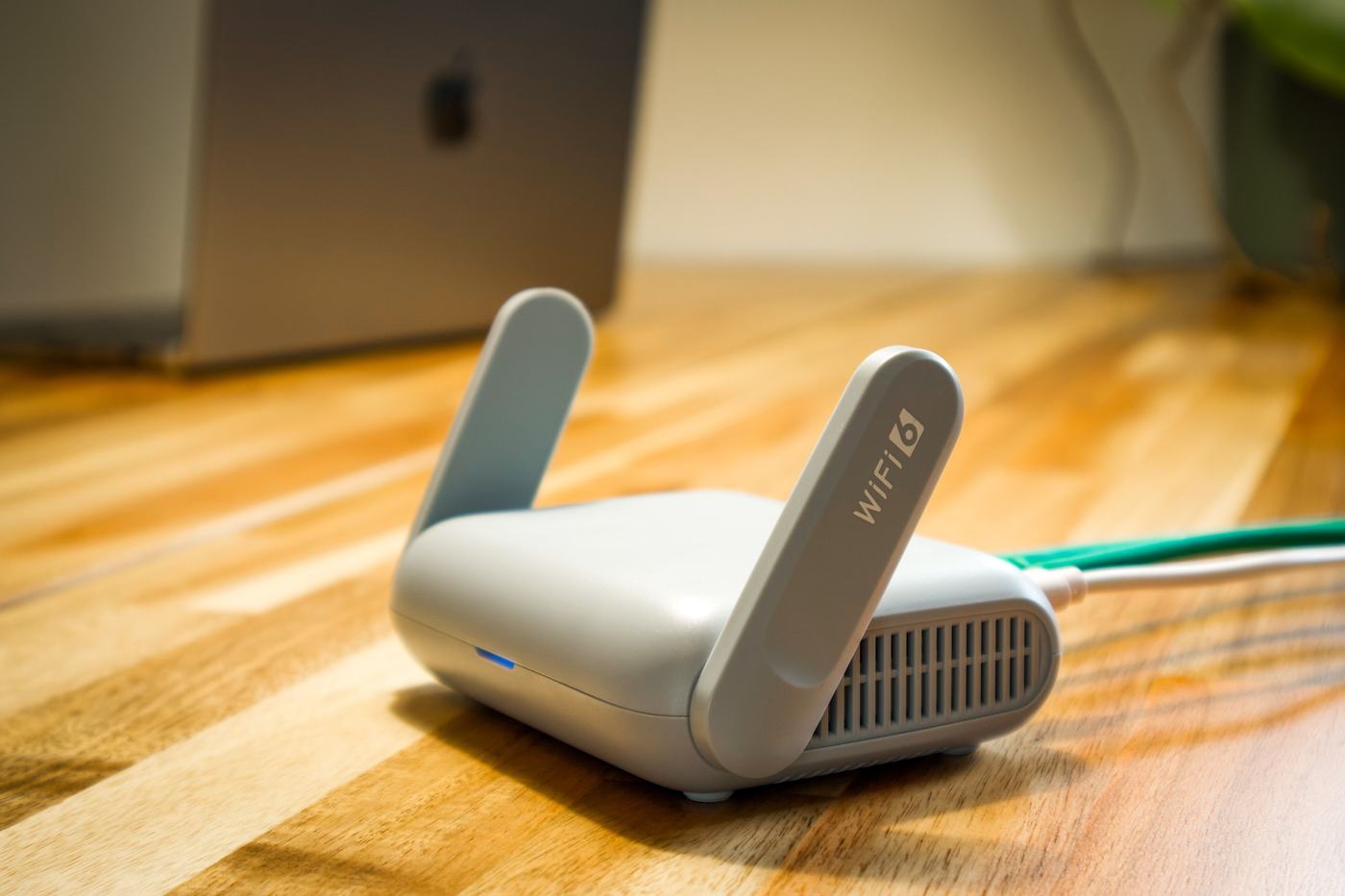
1. Access your router's settings
To see who's connected to your network, you first need to access your router's panel. Type your gateway address into your browser's address bar, usually 192.168.1.1 or 192.168.0.1. The admin username and password are usually printed on a sticker on the bottom or back of the router itself.
2. Find the "Connected devices" section
Inside the router's panel, look for a section usually called "Connected devices", "Wifi client list" or something similar, depending on the brand. There you'll see a list with the name and address of every device currently using your network.
3. Compare the list with your own devices
Check the list and compare it with the devices you know you have at home: phones, computers, the smart TV, smart speakers and any other connected gadget. If you see a name you don't recognize, it might be a device that connected without your permission.
4. Change your wifi password immediately
If you find an unknown device, change your wifi password as soon as possible from the router's settings. This will instantly disconnect any unauthorized device, which will need the new password to get back in.
5. Use an app like Fing to scan your network
If you prefer a more visual and simple way to check from your phone, free apps like Fing scan your network and show you every connected device, with its name, manufacturer and address, without needing to go into the router's panel.
6. Turn on WPA2 or WPA3 encryption on your router
Make sure your network uses WPA2 encryption or, if your router supports it, WPA3. Never leave your network open or using WEP encryption, since it's an old, insecure system that can be bypassed easily.