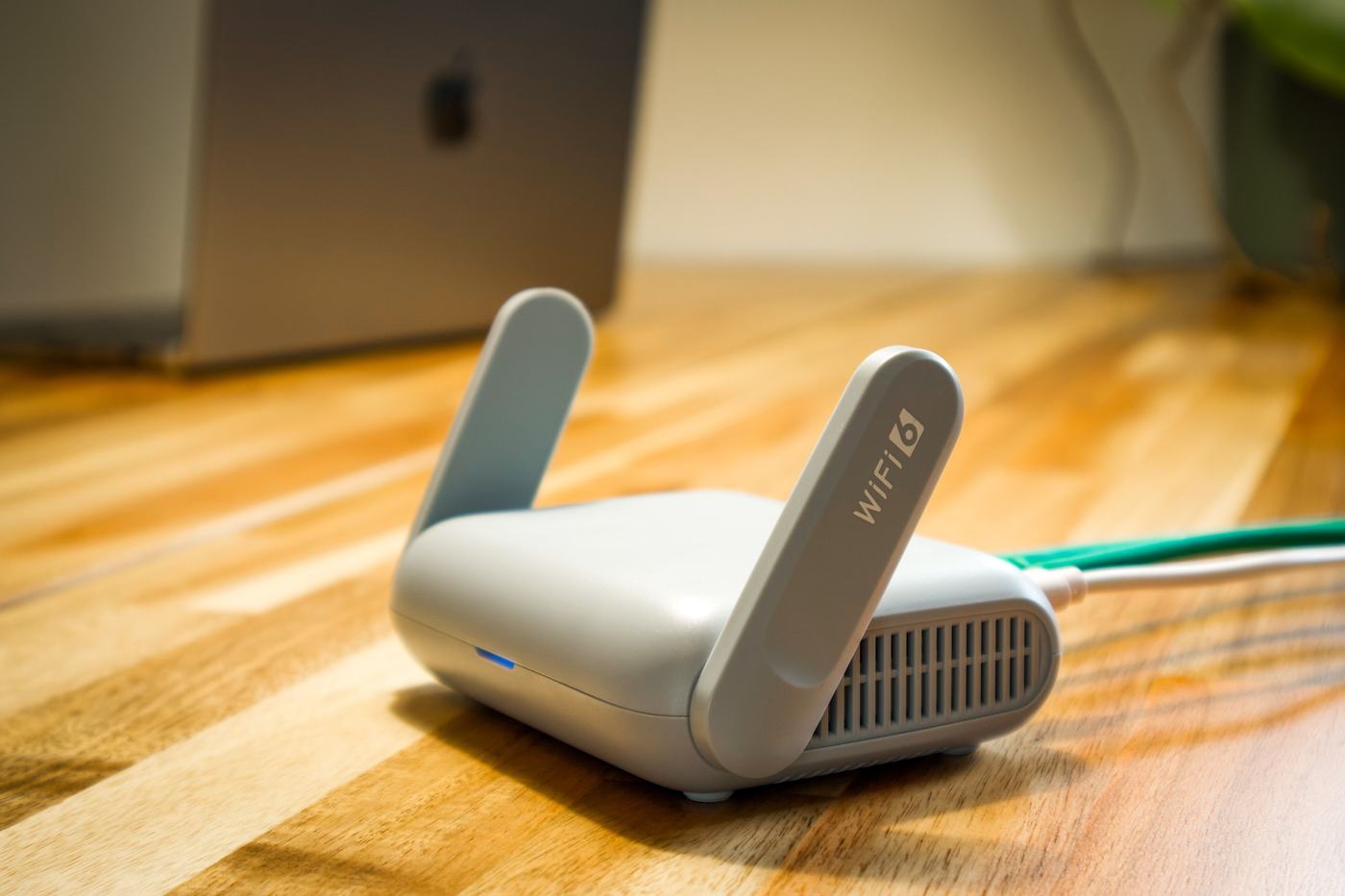
1. Why the lights aren't the same on every router
First, an important clarification: not all routers use exactly the same colors or the same number of lights. Every manufacturer and every carrier designs its own router with its own criteria, so there can be small differences.
Even so, the general logic repeats across most models: there's usually a power light, an internet connection light, one or more wifi lights and, if the router also provides a landline, a phone light. In this article we explain that usual pattern so you know, broadly speaking, what to look at when something isn't working.
2. What each router light usually indicates
These are the most common lights and what they usually represent on most home routers:
- Power: simply indicates that the router has electrical power and is running. If it's off, check the power cable and the outlet.
- Internet / WAN / DSL / Fiber: this is the most important one of all. Solid green usually means there's a stable connection with your internet provider. Off or red usually indicates there's no connection with the provider at that moment.
- Wifi / WLAN: shows whether the wireless network is active. Blinking is normal: it indicates activity, meaning some device is transmitting data over wifi at that instant.
- Phone / VoIP: only exists on routers that also provide landline service. Lit up indicates the phone service is available; if you don't have a landline set up, it's normal for it to stay off.
- Alarm / Attention / Alert: some models have an extra light, sometimes shaped like a triangle or exclamation mark, that lights up to warn of some general problem with the device (not always related to the internet).
3. What to do if the internet light is red or off
If you notice that the internet light (sometimes called WAN, DSL or Fiber depending on the model) is red, off, or blinking differently than usual, try these steps in order:
- Check the physical connections. Make sure the fiber cable, coaxial cable or phone cable (depending on your type of connection) is properly plugged in both to the router and to the wall socket. A loose cable is one of the most common causes.
- Restart the router. Unplug it from the power outlet, wait about 30 seconds and plug it back in. This simple action fixes a good portion of connection issues, because it forces the router to sync again with the provider's network.
- Wait a few minutes after restarting. It's normal for the internet light to take a minute or two to go from red or orange to green while the router syncs again.
- If it's still the same, contact your provider. It could be a specific fault on your line or a general outage in your area that doesn't depend on your router or on anything you can fix yourself at home.
4. Where to check the exact meaning for your model
Since every router is different, the most reliable way to know exactly what each light and each color means in your particular case is to check:
- The router's user manual, in print or digital format on the manufacturer's or your provider's website.
- The label or sticker stuck on the back or bottom of the router itself, which sometimes includes a small diagram of the lights.
- Your provider's support website, which usually has a specific page for the router model they installed for you.
That way you'll avoid relying on guesses and will know for sure what's going on with your connection.